
Why Scanned PDFs Are a Problem
Plenty of academic papers, historical documents and official records exist only as scanned images, page after page of locked‑up pixels that standard text‑based tools can’t touch.
When your research involves pulling quotes, tables or references from dozens of such files, manual transcription becomes a serious bottleneck. Optical Character Recognition (OCR) engines exist, but stitching them into a reliable, repeatable AI workflow is far from trivial: most raw OCR outputs lose headings, merge columns or scramble table structures, which makes it impossible for a large language model to reason over the document with any confidence.
You need a tool that not only ‘reads’ the image but also reconstructs the document’s logical layout and hands back clean, structured, machine‑friendly text. That is exactly what Docling is built to do.
What Docling Does
Docling is an open‑source document understanding library that converts a wide array of document formats into structured information AI agents can consume. Far more than a simple OCR wrapper, it processes materials where text, tables and images are interleaved, including multi‑column layouts, hand‑written notes and complex PDFs that are really just scanned photographs.
Key capabilities that set Docling apart:
- Mixed‑content understanding, it handles documents where natural reading order does not match the raw PDF stream. Tables stay tables, figures retain their captions, and headers are not dumped into the body.
- Format flexibility, the library accepts PDF, DOCX, PPT, XLSX, HTML, images (PNG, JPEG, TIFF), LaTeX, plain text, WAV, MP3, and WebVTT. This dramatically expands the range of source material an AI agent can work with downstream.
- MCP integration, through the Model Context Protocol (MCP), Docling becomes a service that your agent can call directly. This closes the ‘upload → convert → query’ loop within a single conversation, without you ever leaving the chat interface.
In short, Docling takes a photograph of a page and turns it into a Markdown file that preserves the true structure of the content. That structure is what makes the difference between an AI that hallucinates a plausible‑sounding summary and one that actually cites the right paragraph.
Installing Docling Locally
The steps below use an agent in VS Code, but the same approach works in any environment that supports MCP.
First, open your agent’s chat panel.
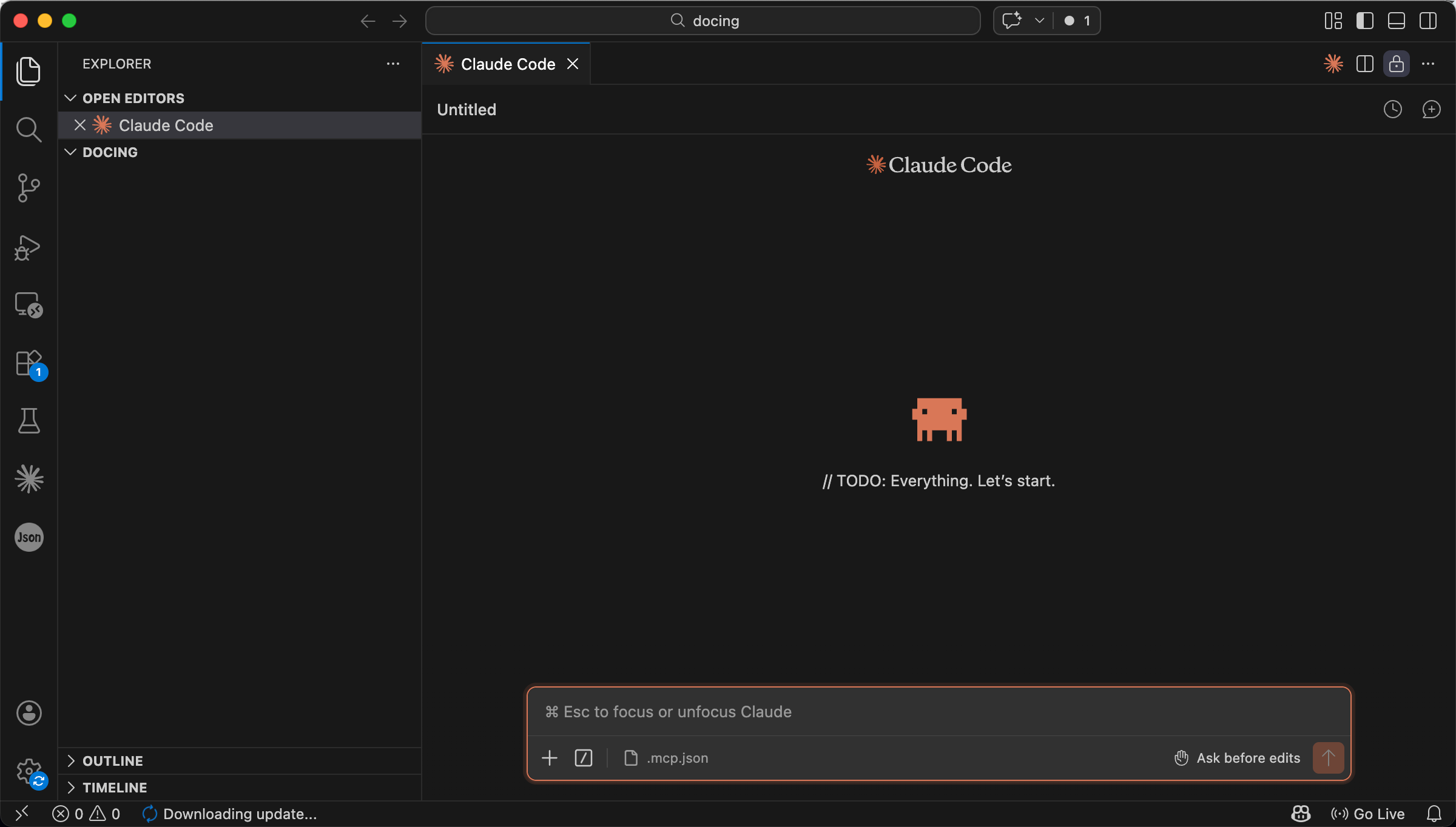
Agent panel
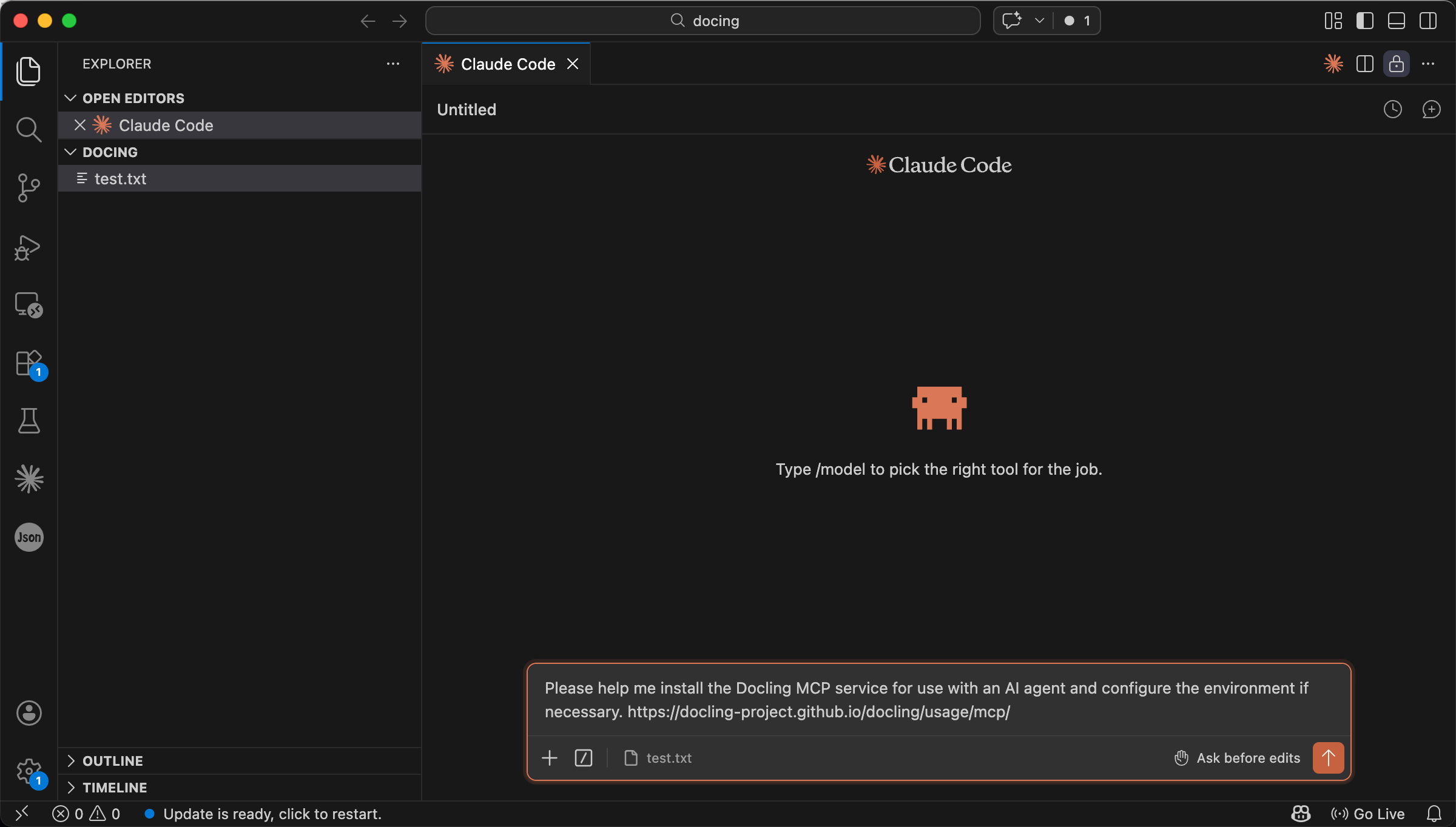
Modern AI agents can often locate and apply installation instructions on their own. To get started, enter a prompt that describes exactly what you want:
Please help me install the Docling MCP service for use with an AI agent
and configure the environment if necessary.
For configuration, refer to the documentation at https://docling-project.github.io/docling/usage/mcp/
MCP status shows Connected after manual steps
Once the agent confirms that the configuration is complete, Docling is ready to use.
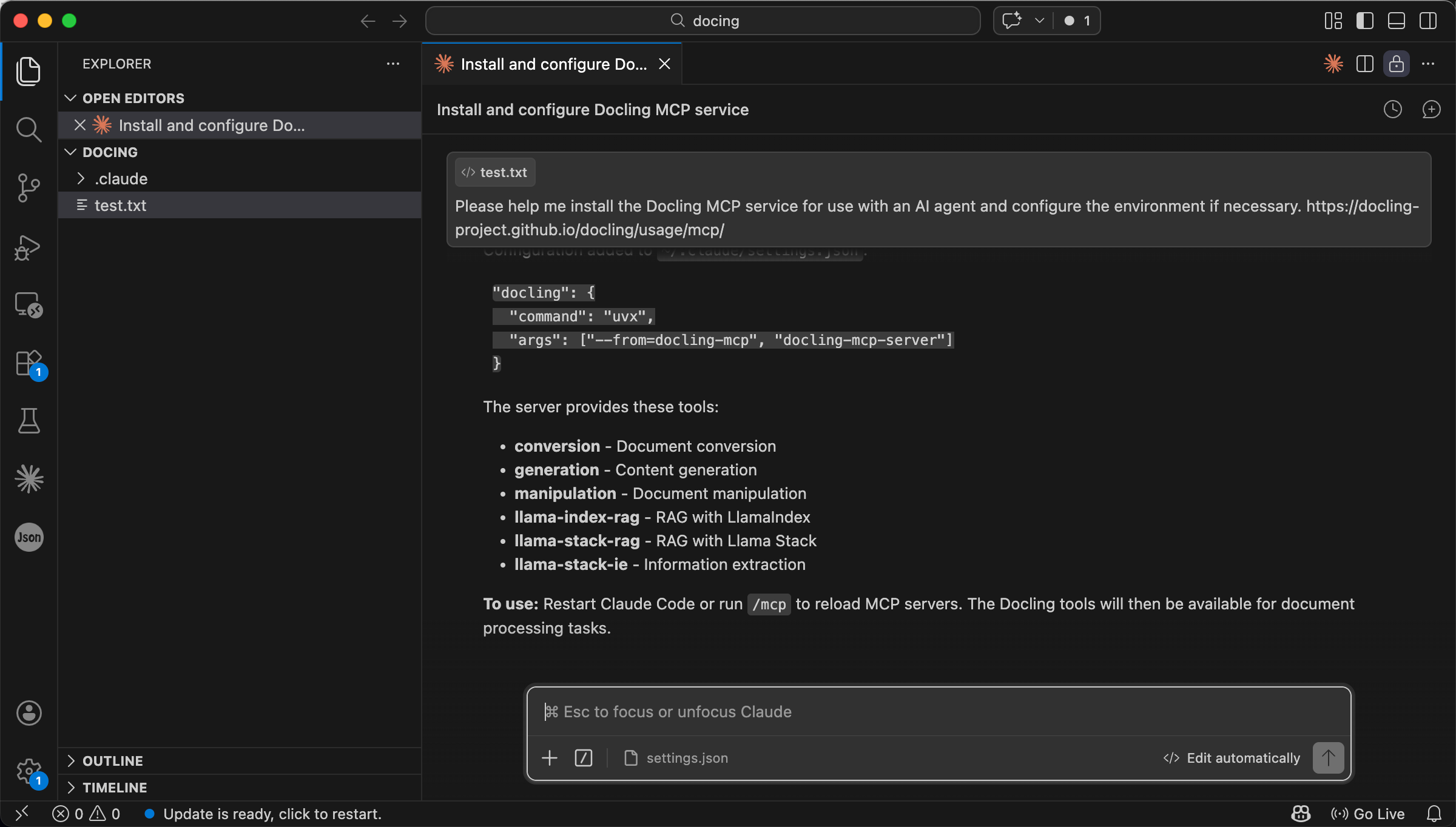
Agent confirms installation is complete
You can verify the installation by typing /mcp in the dialog. This lists all MCP servers currently connected to your agent.
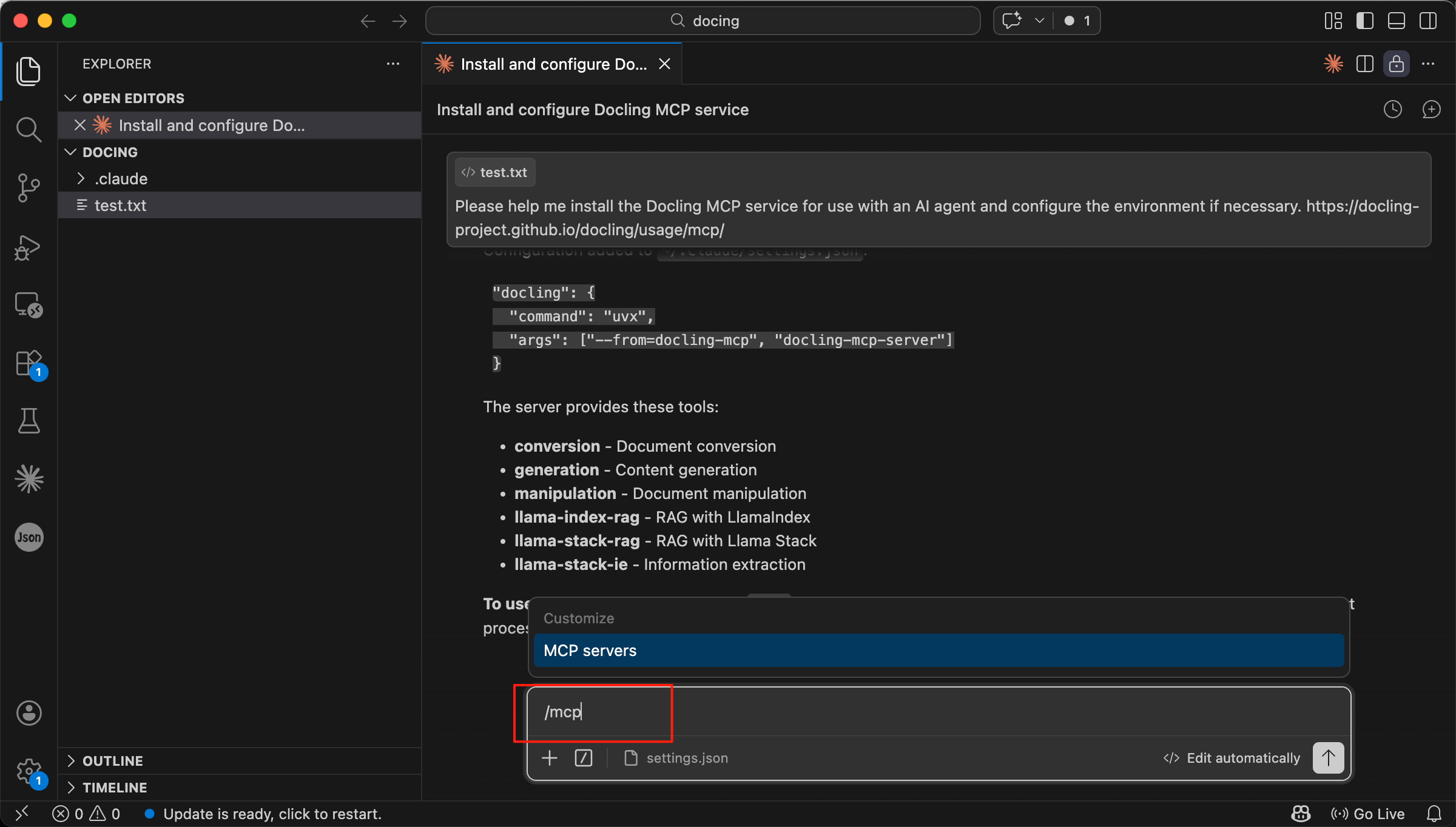
Type /mcp to see the service list
When docling appears in the MCP list and its status is Connected (usually shown in green), the service is active and waiting for your requests.
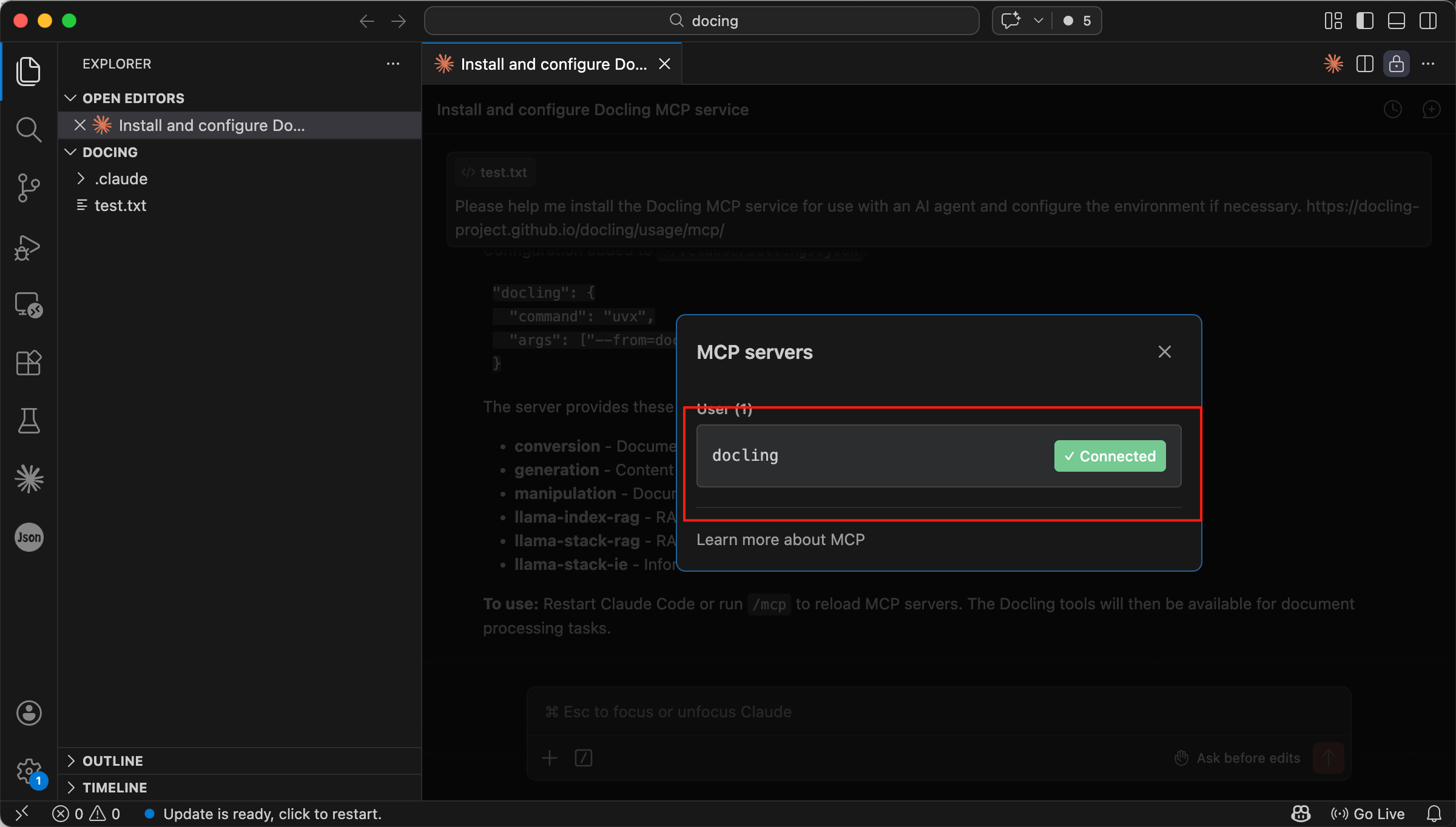
Docling appears as Connected in the MCP list
To test the setup, upload a sample scanned PDF and ask the agent:
Please convert this PDF to Markdown.
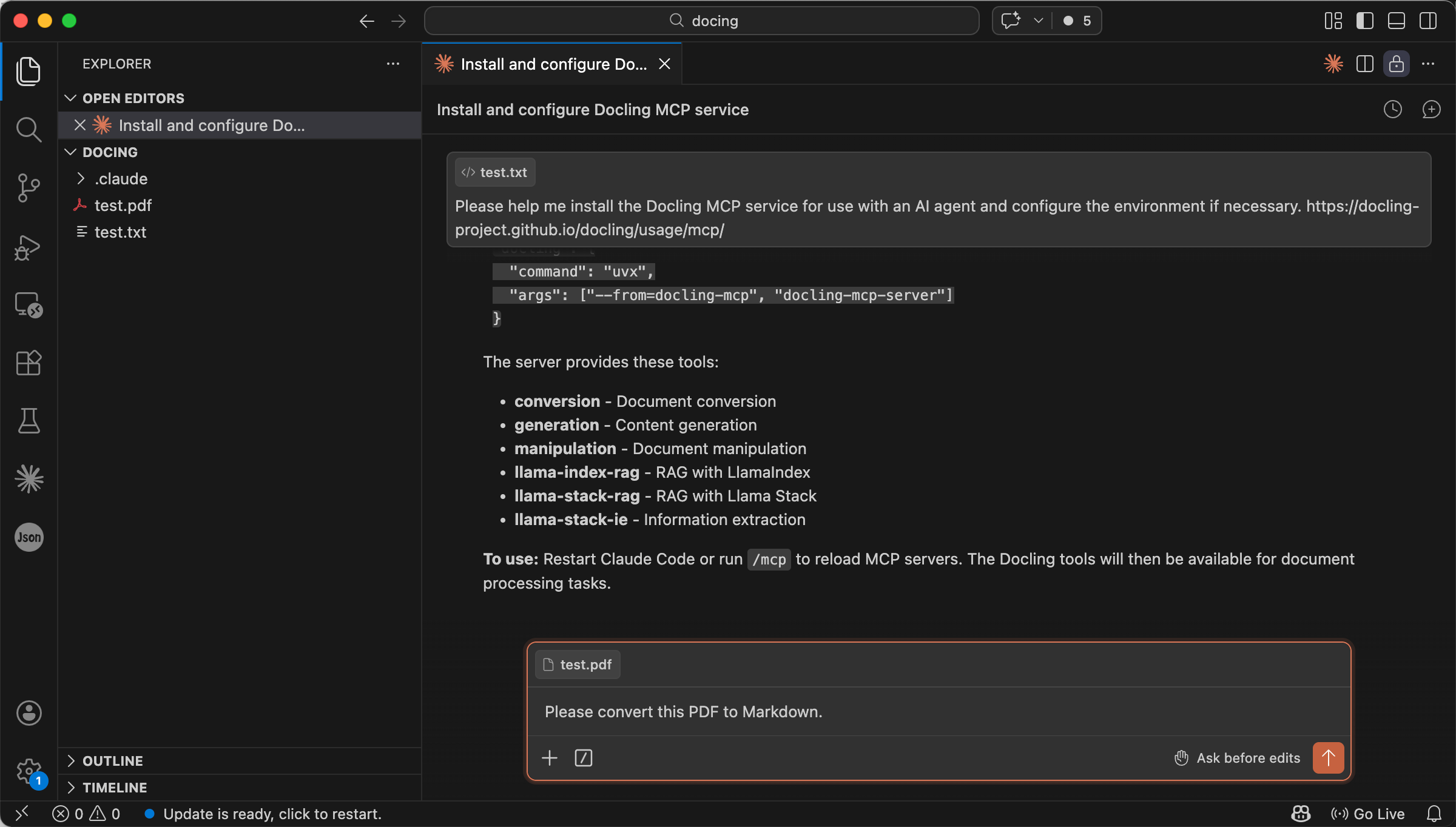
Prompt to convert a PDF to Markdown
A successful conversion will return clean, structured Markdown, headings, paragraphs, tables and image references all preserved. This confirms that your agent can reliably read and process the PDF’s content, which is the foundation for later tasks such as summarisation, key‑point extraction, and evidence‑grounded question answering.
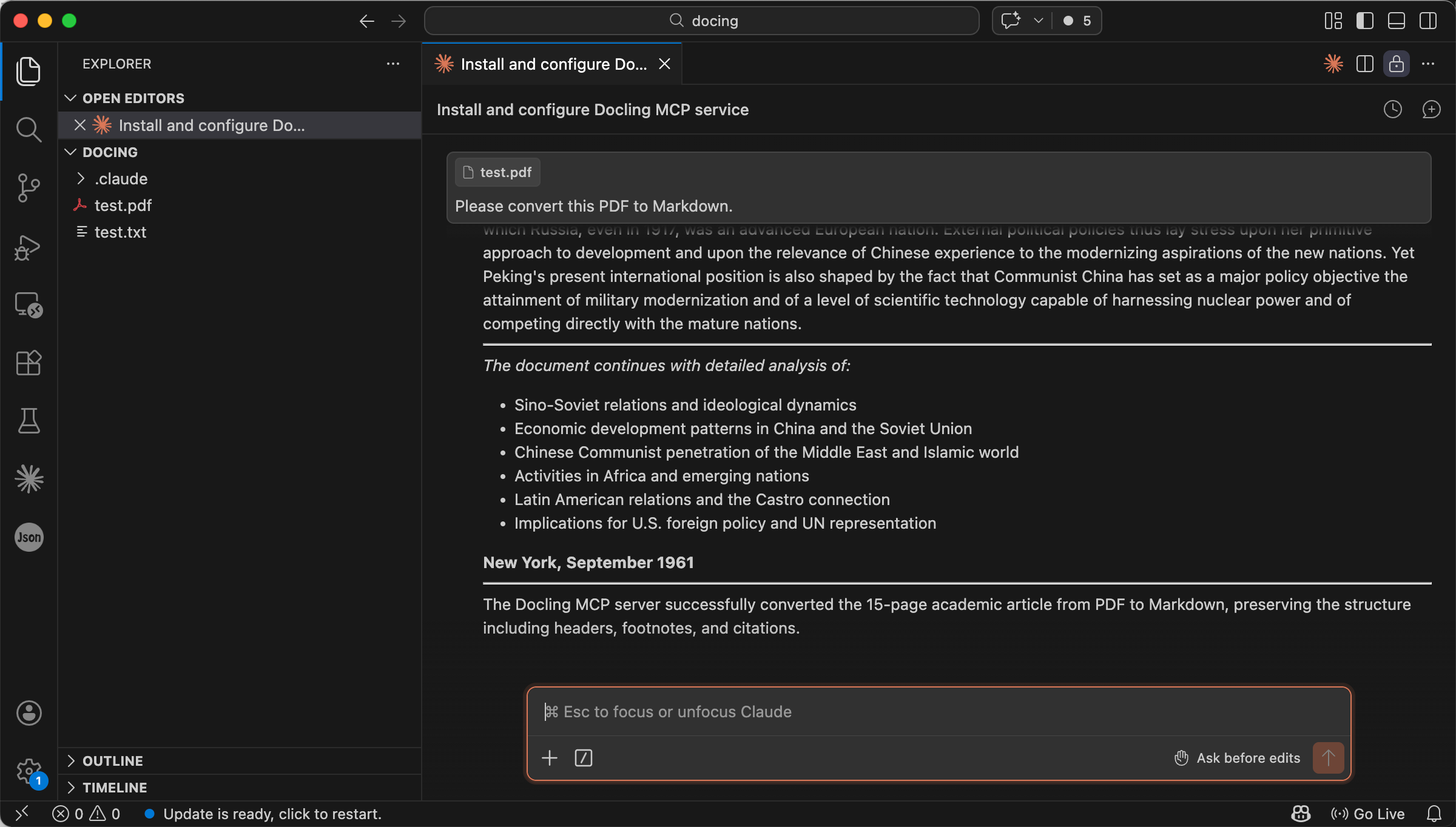
A successful Markdown conversion result
If the conversion fails or the output looks garbled, ask the agent to check the logs and suggest corrections, common fixes include adjusting the system dependencies or re‑scanning the original PDF at a higher resolution.
Checking Output Quality
Obtaining a Markdown file is only half the job. For research‑grade work, you must verify that the output faithfully represents the original document. Spend a few minutes examining a representative sample and pay close attention to the following points:
- Paragraph integrity and reading order, check that key paragraphs are complete and appear in the same logical sequence as in the PDF. Multi‑column layouts sometimes confuse OCR engines, so look for text fragments that may have been shuffled.
- Table fidelity, confirm that tables are identified and that their row‑column structure is preserved. A table rendered as a flat string of numbers is almost useless for downstream analysis.
- Mathematical formulas and special characters, symbols, Greek letters, and block equations are error‑prone. Verify that they have been converted accurately and are not mangled or omitted.
- Headers and footers, ensure that running heads, page numbers, and footnotes are not incorrectly merged into the main text, which would pollute the extracted content.
For particularly important documents, it is safest to cross‑check the Markdown output against the original PDF page by page. If you spot systematic issues, such as unrecognised fonts or consistently broken tables, try re‑scanning the document at a higher DPI or choosing a different export format before sending it to Docling. Small adjustments to the input often yield dramatically better results.
Summary
Docling transforms locked‑up scanned content into structured, machine‑readable Markdown, bridging the gap between static documents and AI‑grounded research. With out‑of‑the‑box support for PDF, DOCX, PPT, XLSX, HTML, PNG, JPEG, TIFF, LaTeX, plain text, WAV, MP3, and WebVTT, it removes the format chaos that typically bogs down document‑heavy projects. Once the MCP service is installed and verified, you can simply describe any conversion or analysis task to your agent and let it handle the rest.
When combined with retrieval‑augmented generation (RAG) or knowledge graph construction, the clean text that Docling produces becomes reliable fuel for evidence‑based answers. Instead of guessing what a scanned paper might say, your AI has the actual text, and that makes all the difference between plausible noise and trustworthy insight.
Why Scanned PDFs Are a Problem Plenty of academic papers, historical documents and official records exist only as scanned images, page after page of locked‑up pixels that standard text‑based tools can’t touch. When your research involves pulling quotes, tables or references from dozens of such files, manual transcription becomes a serious bottleneck. Optical Character Recognition Read More